
Awayke
Keep your MacBook awake with the lid closed
Awayke is a small menu bar app. Click the candle and your MacBook stays awake, even with the lid shut. Most keep-awake apps cannot stop lid-close sleep, but Awayke can, and it turns that back off for you.
Version 1.8.0. The download button always gives the newest build.
Mac: macOS 26 Tahoe or later, on Apple silicon. Free, open source (MIT licence), no accounts, no telemetry.


What it does
Awake when you need it, and no more
Good for overnight builds and downloads, sharing a hotspot from your bag, or keeping a server reachable with the lid shut.
A timer that ends for you
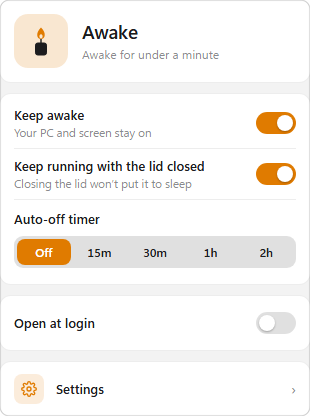
Pick 30 minutes, 1 hour or 2 hours, or add your own from 5 minutes to 24 hours. Normal sleep comes back when the timer ends, when you quit or restart, and if the app ever crashes.
Stops before the battery does
On battery, Awayke switches itself off at a charge level you choose, from 5 to 50 percent. It can also step aside when your Mac is in Low Power Mode.
Small, native and quiet
No background helper, no kernel extension and no telemetry. Awayke makes no network connections and has no accounts.
A closer look
The panel and the settings
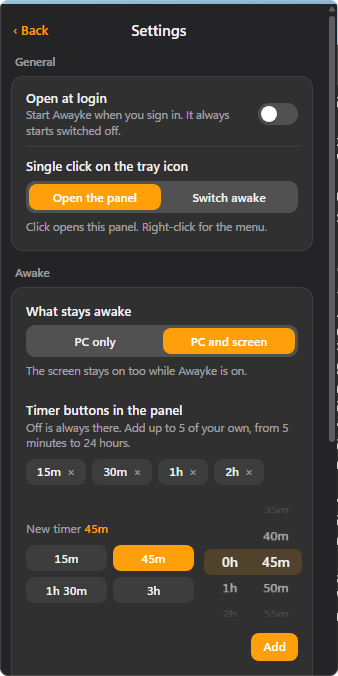
Screenshots of Awayke. Pick an accent colour, and choose how a click works.


Install
Install Awayke
Download it, open the disk image, drag Awayke into Applications. Awayke is signed and checked by Apple, so it opens like any normal app.
MacYour computer
macOS 26 Tahoe or later, Apple silicon
Download for Mac Awayke.dmgOr paste this into Terminal. It downloads, installs and opens Awayke in one go.
curl -fsSL https://solomon-69.github.io/Mac-Apps/download/install.sh | bash -s awayke- Open the downloaded file and drag Awayke into Applications.
- Open Awayke from Applications. Look for the candle in the menu bar and click it.
- The first time, Awayke asks for permission once, with Touch ID or your password. Then you can close the lid.
About the one-time permission
Why Awayke asks for your password once
- Stopping lid-close sleep needs a protected macOS setting, which normally asks for a password every time.
- Awayke asks once and installs one small rule. It lets your account run exactly two commands without a password: turn lid-close sleep off, and back on.
- Nothing else. The uninstaller removes the rule.
The full security notes are on GitHub.
Questions
Good to know
Is it safe? Will my Mac overheat or drain the battery?
It is fine for light work you leave running, such as downloads, syncing or a hotspot. Heavy work with the lid fully shut reduces airflow, so use judgement. The timer and the low-battery cutoff stop it before the battery runs flat.
I switched it on, closed the lid, and the Mac still slept.
Open the panel and check it says the Mac stays awake. Then, in Terminal, run pmset -g | grep SleepDisabled. It should say 1 while Awayke is on. If it says 0, switch Awayke off and on again to be asked for the permission.
Does it collect any data?
No. Awayke makes no network connections, has no analytics and no accounts. Its settings are stored only on your Mac.
Is it open source? Who made it?
Yes, under the MIT licence. Awayke is based on Sleepless by Adam Boudjemaa, and the redesign and changes are by Solomon. The code is on GitHub.
How do I remove it?
Use the uninstall script that comes with the app, in /Applications/Awayke.app/Contents/Resources/uninstall.sh. It restores normal sleep, removes the app and removes the permission rule.
Opening the app
Mac: every app here is signed and checked by Apple (notarized), so it opens like any normal app: open the download, drag to Applications, double-click. Windows: the first time, SmartScreen may warn you: click More info, then Run anyway. You can check a download against the SHA-256 fingerprints in each release (the SHA256SUMS file) on GitHub.