Memo
Everything you copy, one shortcut away
Memo keeps a history of everything you copy: text, links, pictures, files and colours. Press Control, Command and V anywhere, pick an item, and it pastes straight back into the app you are using.
Version 1.3. The download button always gives the newest build.
Mac: macOS 14 Sonoma or later, on Apple silicon. Free, open source (MIT licence), no account needed.


What it does
Your clipboard, kept tidy
Memo sits in the menu bar and quietly keeps a list of what you copy. Nothing is lost when you copy something new.
Open any item to read it all
Long text shows in full and you can select part of it. Pictures show large, files are listed, and colours show a big swatch with the code.
Find it in a few letters
Start typing as soon as the panel opens and the list narrows with every letter. Pin the things you paste every day so they stay at the top.
Your history stays on your Mac
No account and no network access. Items from password managers, and items apps mark as hidden, are never saved.
A Windows version
Memo now lives in the Windows tray. Press Ctrl+Shift+V to open your history and pick an item to paste it back.
Share with a friend
On a Mac, one click packs the app up and opens the share sheet, so you can send it to a friend by AirDrop.
Menus stay open
Click another icon in the menu bar and this panel stays open instead of closing on you.
A closer look
Read it, find it, keep it
Screenshots of the panel. Memo follows your light or dark setting.


Keys
Made for the keyboard
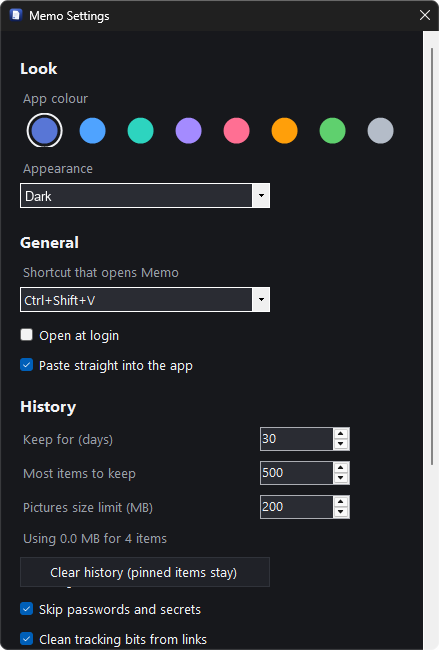
You can do almost everything without touching the mouse. You can change the shortcut that opens Memo in Settings.
- Open Memo⌃ ⌘ V
- Move and paste↑ ↓ then Return
- Quick paste⌘ 1 to 9
- Paste as plain text⌥ Return
- Expand or collapse a rowSpace or ←
- Pin or unpin⌘ P
Install
Install Memo
Download it, open it, drag it into Applications. Memo is signed and checked by Apple, so it opens like any normal app.
MacYour computer
macOS 14 Sonoma or later, Apple silicon
Download for Mac Memo.dmgOr paste this into Terminal. It downloads, installs and opens Memo in one go.
curl -fsSL https://solomon-69.github.io/Mac-Apps/download/install.sh | bash -s memo- Open the downloaded file and drag Memo into Applications.
- Open Memo from Applications. Look for the Memo icon in the menu bar and click it.
- To paste straight into apps, allow Accessibility in System Settings, Privacy & Security. Without it, Memo copies the item and you press Command V yourself.
WindowsYour computer
Windows 10 or 11, 64-bit
Download for Windows Memo-windows.zip- Right-click Memo-windows.zip and choose Extract All. Keep the folder somewhere permanent, for example Documents.
- Open the folder and run Memo.exe. Memo lives in the tray.
- Press Ctrl+Shift+V to open your history, then pick an item to paste it back.
- If Windows shows a warning, click More info, then Run anyway.
Questions
Good to know
Does Memo send anything anywhere?
No. Memo collects nothing and makes no network connections. Nothing you copy leaves your Mac.
Where is my history kept?
In a small database in Memo's own folder in Application Support, on your Mac only.
Will it save my passwords?
No. Items copied from password managers, and items apps mark as hidden, are never saved.
Can I stop it recording, or limit how much it keeps?
Yes. You can pause recording at any time, ignore apps you choose, and set how many days to keep, the most items to keep and a size limit. Pinned items always stay.
Can I build it myself?
Yes. Memo is open source under the MIT licence. The code and build steps are on GitHub.
Opening the app
Mac: every app here is signed and checked by Apple (notarized), so it opens like any normal app: open the download, drag to Applications, double-click. Windows: the first time, SmartScreen may warn you: click More info, then Run anyway. You can check a download against the SHA-256 fingerprints in each release (the SHA256SUMS file) on GitHub.